 StandBy
Your phone, now a desk display
A big clock and your tasks, glowing on pure black while your Android phone charges.
- No internet permission
- No ads, no accounts
- Android 8.0 and up
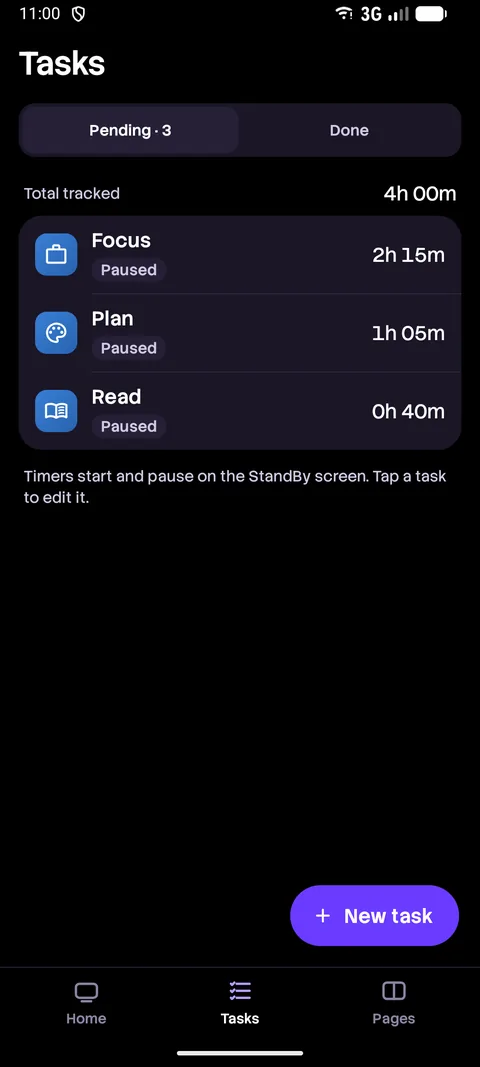
Track time on every task
One tap to start or pause. The hours you put in sit right beside the clock.
- Pomodoro timer that can count focus time toward a task
- Interval timer for workouts and study blocks
- Stopwatch, tally counters and habits with streaks
Design every page
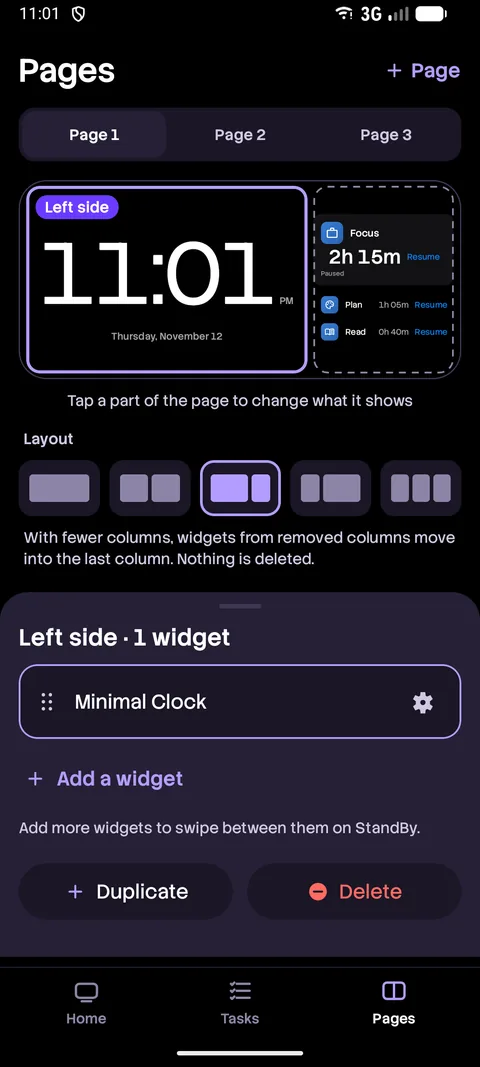
Swipe between pages. Each one holds up to three columns, and each column is a stack of widgets you swipe through.
- Open the Pages tab, or long-press the screen
- A live preview shows every change as you make it
- Tap a part of the page to add, reorder and fine-tune its widgets
Easy on your eyes at night
Made for AMOLED. Unused pixels stay pure black, so the clock glows and the rest of the screen stays off.
- Red night mode on a schedule or the light sensor
- Pixel shifting to reduce burn-in, and optional dimming
- Live animation only while the phone charges
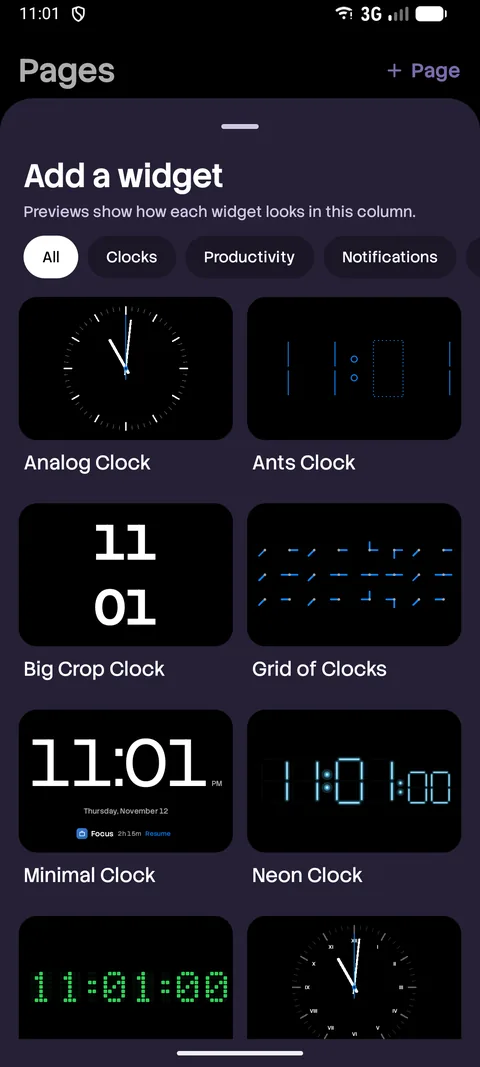
28 widgets, 11 clock faces
Pick a face for every mood, then stack the widgets you actually use.
- Minimal
- Analog
- Split-Flap
- Neon
- Word
- Pixel
- Grid of Clocks
- Roman
- Big Crop
- World
- Ants
Plus a liquid-wave battery, now playing with play and skip, Up Next and Month calendars, a system dashboard and read-only notifications.
Start in one tap
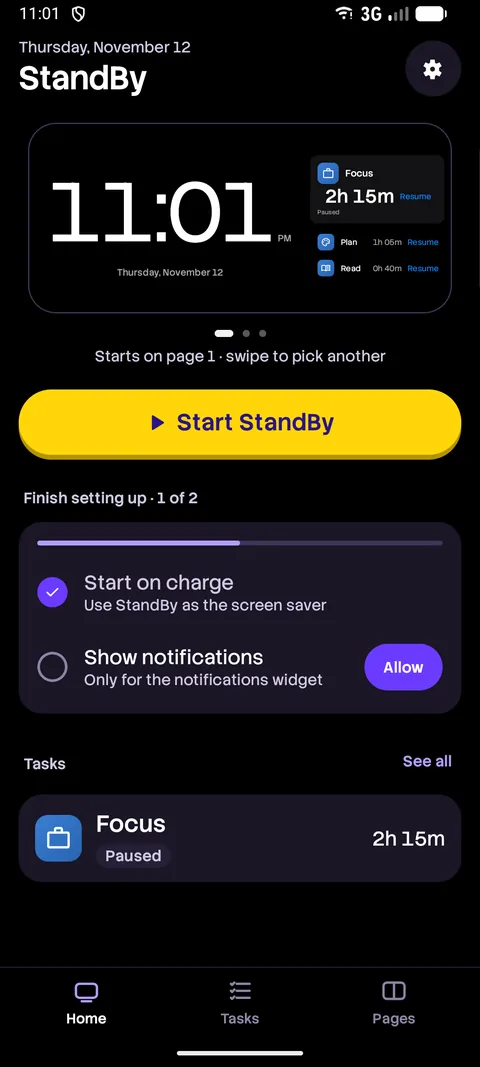
Open it from Home, a launcher shortcut or the Quick Settings tile. Or let it appear by itself.
- Lay your phone sideways
- Tap Start StandBy
- Set it as your screen saver to start on charge
Private by design
Your tasks, calendar events and notifications stay on your phone. They are never sent anywhere.
- No internet permission
- No ads, no accounts
- Permissions only when a widget needs one
- Works fully offline

Good to know
Short answers to the questions people ask first.
Is StandBy free?
Yes. StandBy is free, has no ads and no in-app purchases.
Does StandBy need the internet?
No. The app has no internet permission, so it works fully offline and cannot send your data anywhere.
Will it burn in my AMOLED screen?
StandBy keeps every unused pixel pure black and shifts the picture slightly over time to reduce burn-in. You can also dim the screen or switch to a red night mode.
Does it drain my battery?
Live animation runs only while the phone is charging. There is no foreground service and no wake lock, and nothing runs in the background except a timer alert you asked for.
How do I make it start by itself while charging?
Set StandBy as your screen saver in Android's display settings. It then appears by itself while the phone charges or sits in a dock. You can also start it from a Quick Settings tile, a launcher shortcut or the Home screen, and choose to show it over the lock screen.
Which phones does it work on?
Any phone or tablet running Android 8.0 or later. The interface is in English and supports right-to-left layouts.
Which permissions does it ask for?
Only what a widget you add needs: calendar access for calendar widgets, notification access for the notifications and now playing widgets (with a clear explanation first), and optional notification and exact alarm permissions for timer alerts while the app is closed.